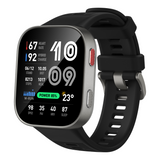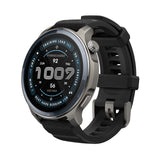
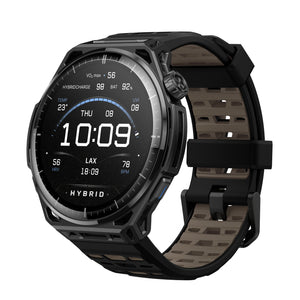
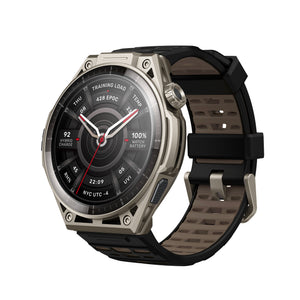

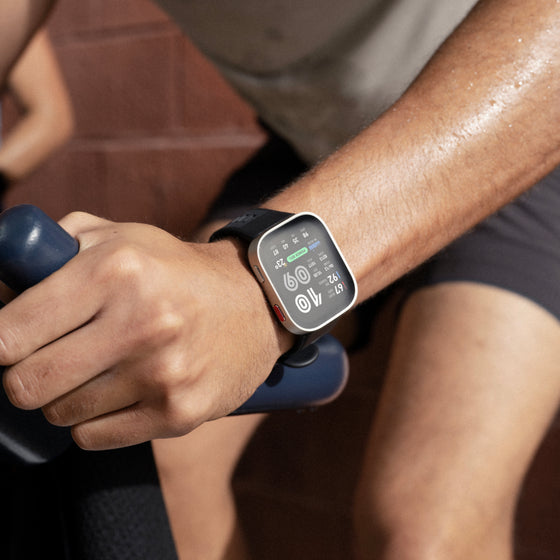
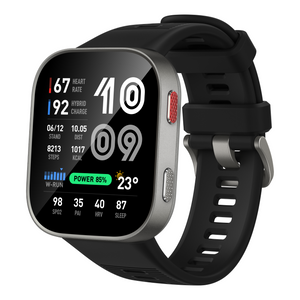
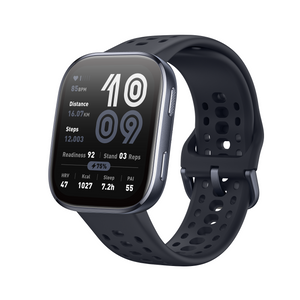

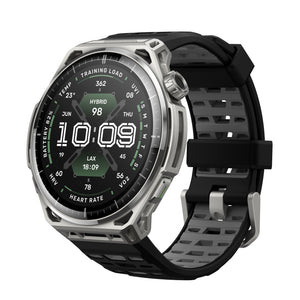
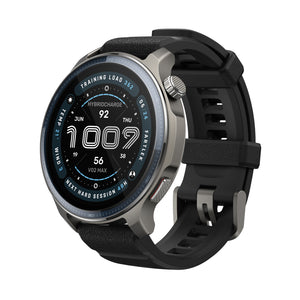

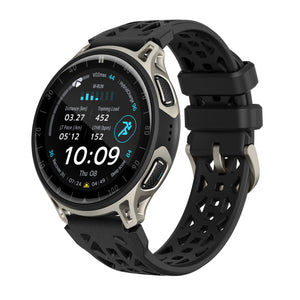
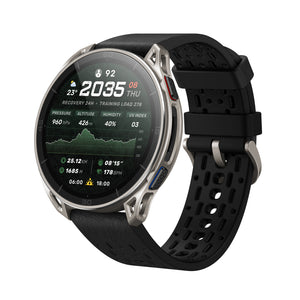
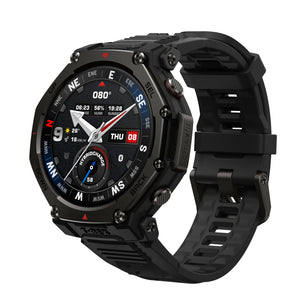
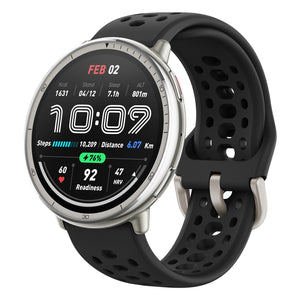



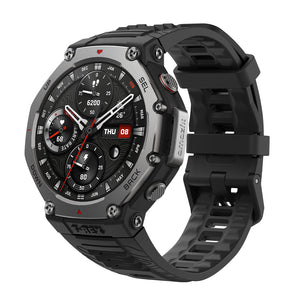
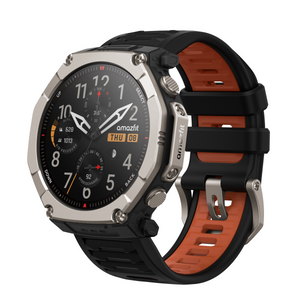












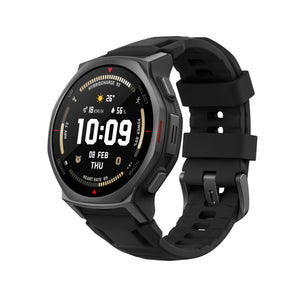



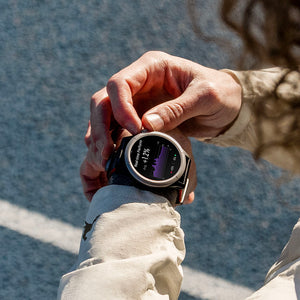



The T-Rex 3 Pro is built for adventurers who need reliable navigation both on their wrist and in the Zepp App. Whether you’re training for endurance, exploring new terrain, or simply planning your daily run, the route planning feature gives you the freedom to create, save, and follow your paths with ease.
Below, we’ll walk you through how to plan and manage routes using both the Zepp App and your T-Rex 3 Pro watch.
Route Planning on the Zepp App
-
Open the Zepp App, tap Workout at the bottom → More → Create Route. After selecting, choose workout, then tap on the map to set the starting point. Tap the map again to plan the route.
-
The tools on the left toolbar are, in order: Scale and Compass (appear after zooming or rotating the map), Map Layers, Back to Current Location, Planning Settings, Planning Tools, and Search.
-
Add a waypoint: Select any location on the route as needed, enter a name for the waypoint, select the location type, and then tap Save to finish.
(*A route must be created before adding waypoints.)
-
After finishing the route setup, tap Save Route, enter a route name (default format: region + workout), then tap Save again. Once saved, you can select Edit to modify the route, add Waypoints, or Send to Device to sync it. Under More in the top right corner, you can also Share or Delete the route.
-
Saved routes can be viewed under Workout → More → My Route. Tap a route to edit it, send it to a device, or view waypoint information. To delete a route, tap More in the top right corner, or swipe left on the route in the My Route list and tap the delete icon.
-
After a route is sent to the watch, go to the corresponding workout → Settings → Navigation → My Route. Select the route, then start the workout to use it.
Route Planning on the T-Rex 3 Pro Watch
-
Automatic Round-Trip Route Planning
-
Open the map, wait for positioning, press SEL → Navigation → Create Round-Trip Route.
-
Choose workout type, direction, and target distance.
-
The watch will generate a round-trip route automatically.
-
Tap Start Workout to begin, or Save Route to use later under My Route.
-
To delete: open the route → swipe up → Remove → confirm.
-
Waypoint-Based Route Planning
Path 1 – Direct from Map
-
Open the map and wait for positioning.
-
Tap anywhere within 100 km → choose Straight-Line Navigation or Route Navigation.
-
Straight-Line starts immediately.
-
Route Navigation plans a path (max. 150 km).
-
-
You can also Save Current Location under Navigation → My Locations.
Path 2 – From Saved Locations
-
Go to Navigation → My Location.
-
Select a saved location, then choose Straight-Line Navigation or Route Navigation.
-
To delete: select location → swipe up → Remove → confirm.
When using waypoint navigation, if you deviate more than 500 meters from the route during the workout, the watch will automatically trigger the route recalculation function.
With the Amazfit T-Rex 3 Pro, you’re never limited to the beaten path. From detailed pre-planning in the Zepp App to quick on-the-go navigation directly on your watch, route planning ensures you can train smarter, explore further, and always find your way back. Adventure is in your hands—and on your wrist.